 CarMirror
How to mirror your iPhone to a Tesla screen
Works on MCU2 and MCU3, no hotspot or VPN tricks — just the Tesla browser.
Read the guide →Mirror your iPhone to Tesla, BYD, Togg or any smart TV — no hotspot, no cables, no IP setup. One tap on your phone, a 6-digit code in the car, and your screen is there.
Use while parked. DRM apps (Netflix, Disney+) are blocked by copy protection — we're honest about that.
CarMirror is launching on the App Store for iPhone (iOS 16+). Setup takes less time than parking: install, tap Start Mirroring, type the code in your car.
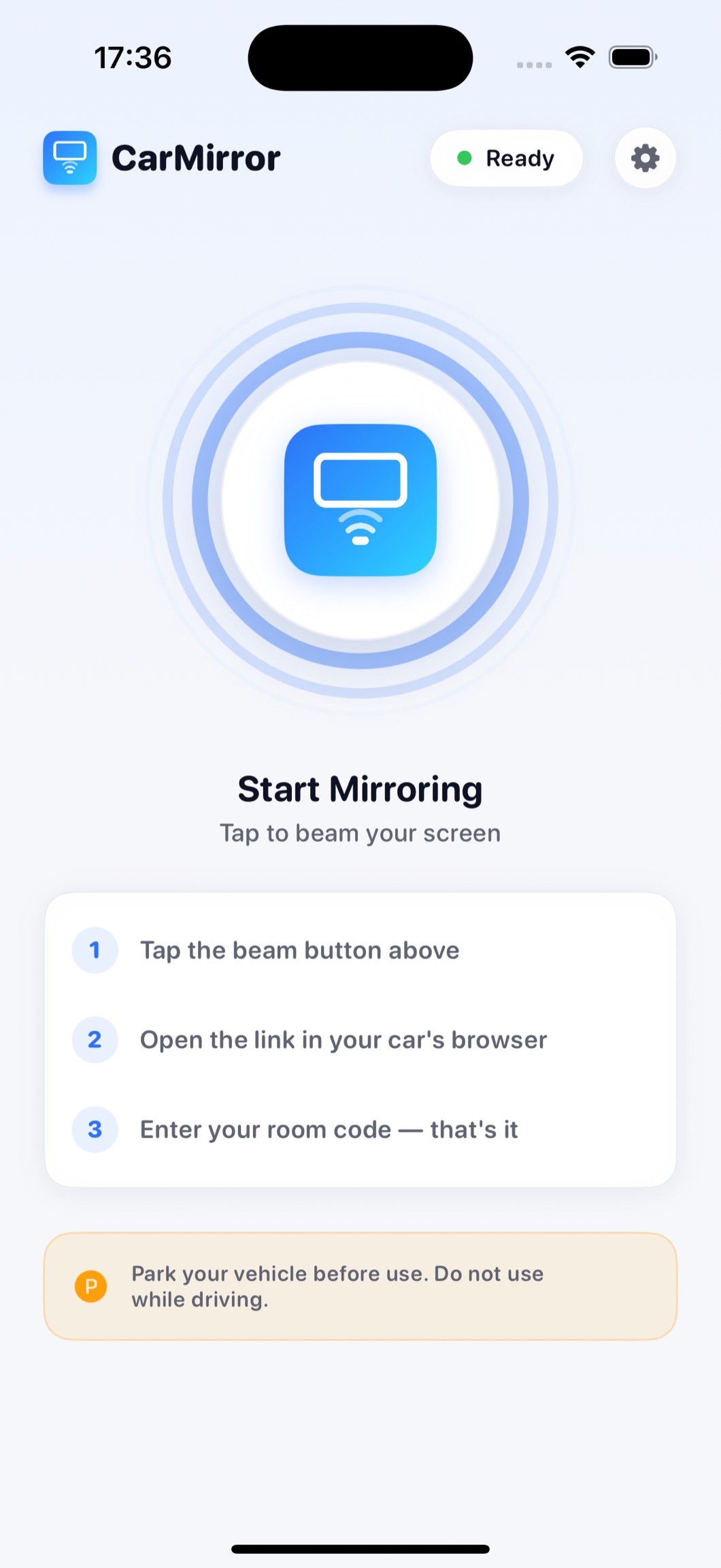
No pairing menus, no network settings. Three steps, every time.
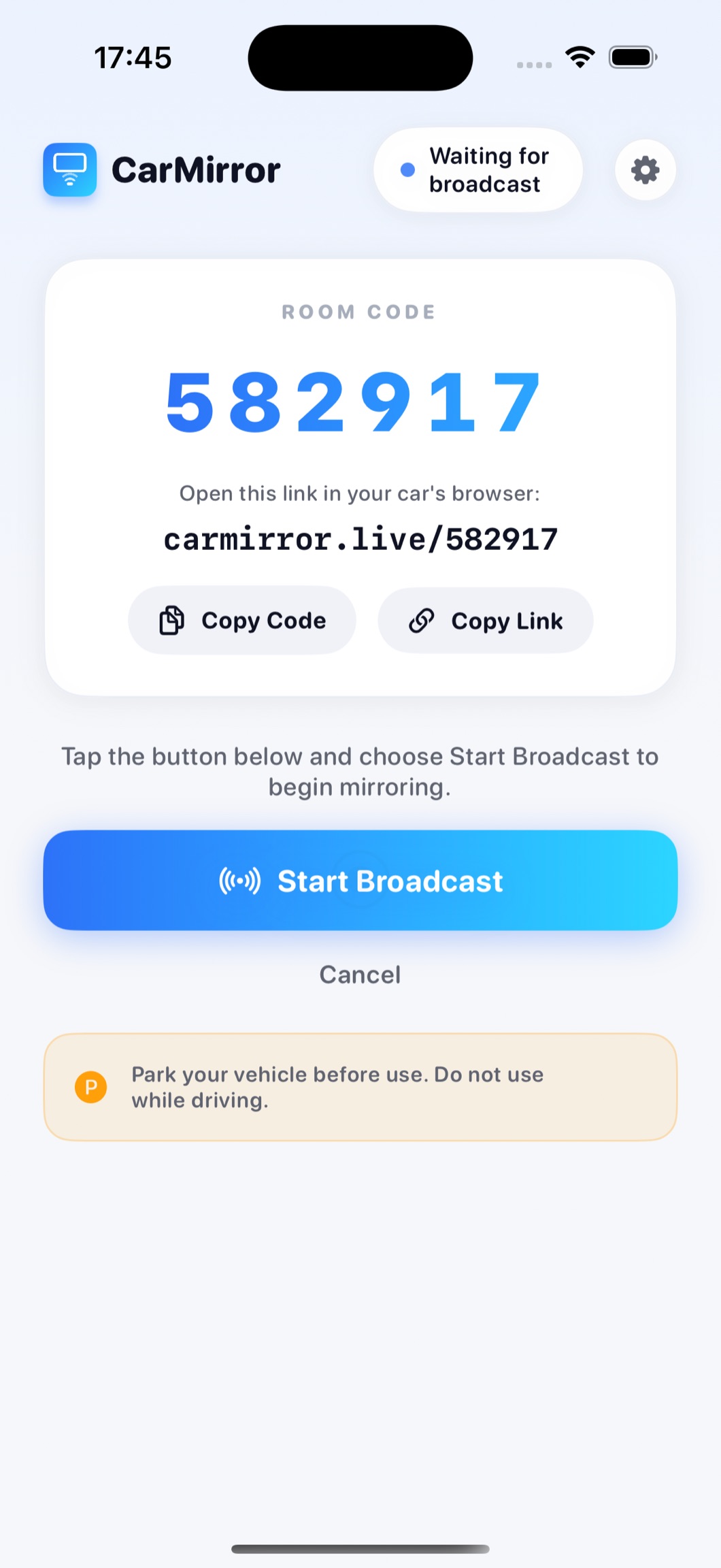
Open CarMirror on your iPhone and tap the beam button. iOS asks once to start the screen broadcast.
In the car or TV browser, go to carmirror.live and enter your 6-digit code — or type the full link like carmirror.live/123456.
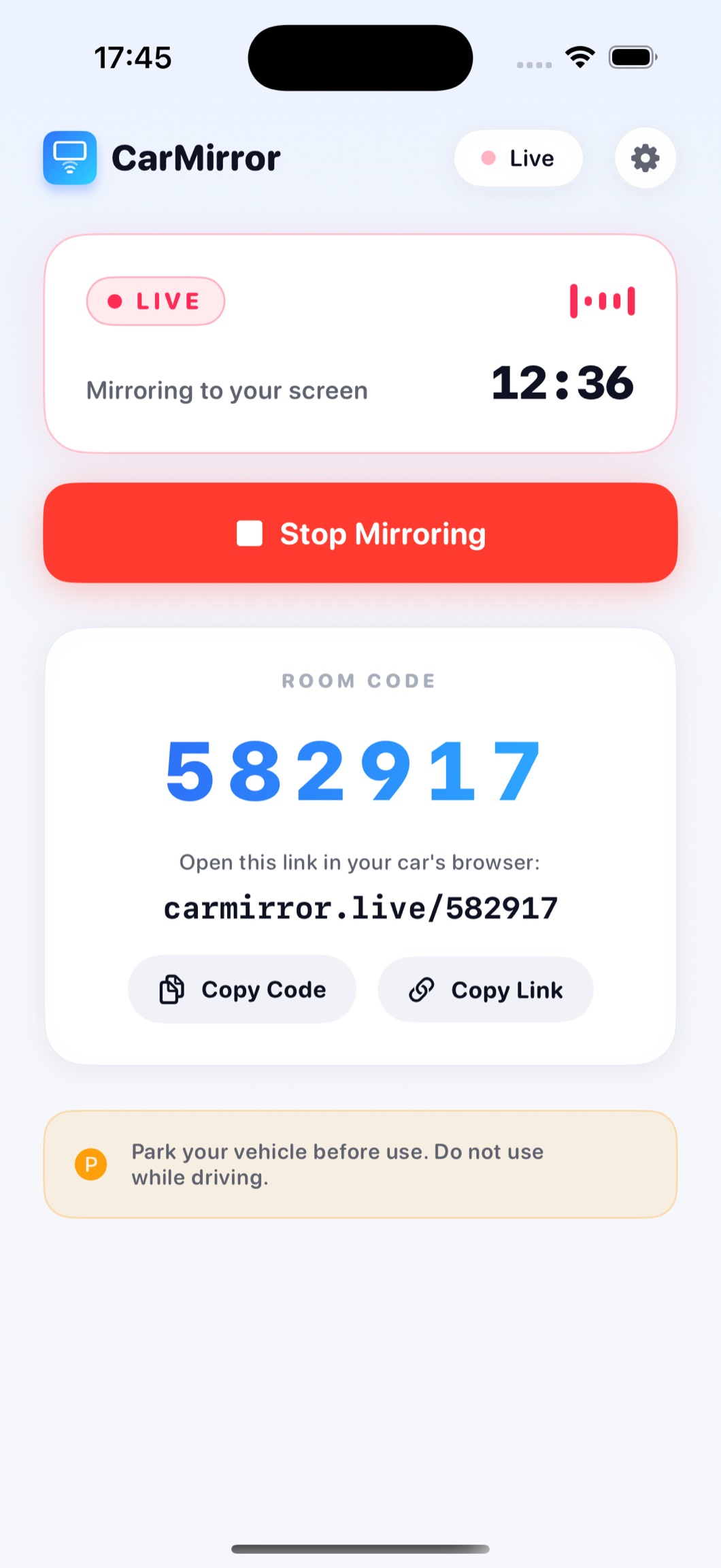
Your iPhone screen appears with sub-second delay. Switch to any app: YouTube, Maps, photos — it all mirrors.
A one-button app on the phone, a clean full-screen player in the car.
Step-by-step answers for every screen you want to mirror to.
Works on MCU2 and MCU3, no hotspot or VPN tricks — just the Tesla browser.
Read the guide →Why hotspot + IP methods break Tesla features, and the setup-free alternative.
Read the guide →One method for every car with a browser — including cars without CarPlay.
Read the guide →No AirPlay, no dongle: mirror to Samsung, LG or any TV that can open a website.
Read the guide →Put your iPhone on the DiLink display using the built-in browser.
Read the guide →Togg'un tarayıcısıyla dakikalar içinde ekran yansıtma kurulumu.
Rehberi oku →Open CarMirror, tap Start Mirroring, then open carmirror.live in the Tesla browser and enter your 6-digit code. Your screen appears in seconds. Learn more →
No. CarMirror streams over the internet, so you never create a hotspot, plug in a cable or type an IP like 6.6.6.6. The car only needs its built-in browser. Learn more →
Anything with a modern browser: Tesla (MCU2/MCU3), BYD DiLink, Togg, and smart TVs like Samsung Tizen and LG webOS. Learn more →
Yes — while parked. Open YouTube on your iPhone during mirroring and it plays on the car display. DRM apps (Netflix, Disney+) show a black screen due to copy protection. Learn more →
Latency stays well under a second on a good connection — CarMirror uses hardware H.264 encoding and adaptive WebRTC streaming built for moving pictures, not slideshows.
No. CarMirror runs entirely in the car's browser, so it works in cars that never supported CarPlay — Tesla included. Learn more →
CarMirror is for parked cars and passengers. Watching video on the driver's display while driving is unsafe and illegal in many regions — the app and this site say so everywhere.
Tesla, BYD, Togg, smart TVs — if it has a browser, CarMirror reaches it.
Get CarMirror for iPhoneQuestions, feedback or trouble mirroring? We read every message and usually reply within 1–2 business days.
You can also reach support from inside the app: Settings → Contact Support.